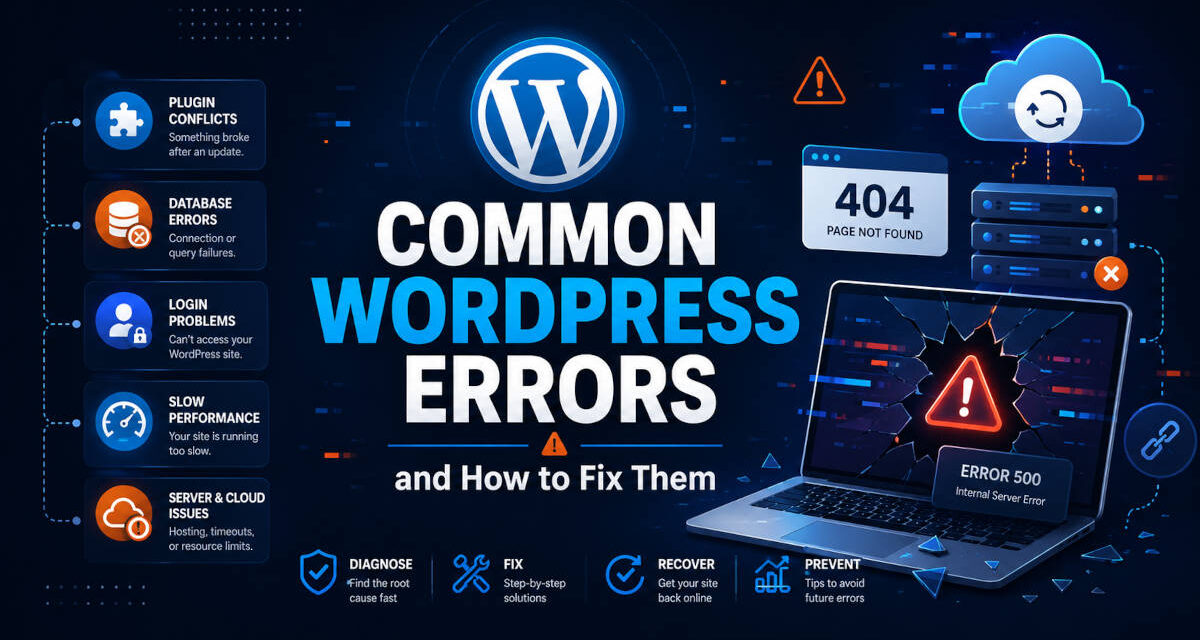
WordPress is a flexible and reliable platform, but no website is completely immune to technical problems.
A plugin update may trigger a critical error. A server change can break a connection to the database. A contact form may suddenly stop sending messages. In other cases, a website may become slow or display a blank screen without explaining what went wrong.
The good news is that many common WordPress errors can be diagnosed and repaired without rebuilding the entire website.
The key is to troubleshoot carefully and avoid making several changes at once. Randomly disabling features, deleting files, or installing more plugins can make the original problem harder to identify.
This guide explains some of the most common WordPress errors, what usually causes them, and the steps you can take to get your website working again.
Before Troubleshooting Your WordPress Website
Before changing plugins, themes, server settings, or website files, create a complete backup.
A WordPress backup should include:
- Website files
- WordPress themes
- WordPress plugins
- Uploaded images and documents
- The WordPress database
- Important server configuration files
Many hosting companies provide automatic backups and one-click restore options. Backup plugins can also save copies to services such as Google Drive, Dropbox, Amazon S3, or another remote location.
Whenever possible, test major repairs on a staging copy of the website rather than the live site.
You should also keep notes about every change you make. Change one item, test the website, and then proceed to the next step. This makes it much easier to identify the actual cause of the problem.
1. “There Has Been a Critical Error on This Website”
The WordPress critical error message is one of the most common problems administrators encounter.
The message usually appears when PHP encounters a fatal error that prevents WordPress from completing the page request.
Common causes include:
- A plugin conflict
- A broken plugin update
- A theme error
- Incompatible custom code
- An outdated PHP version
- A plugin that does not support a newer PHP version
- Insufficient server memory
- Missing or damaged WordPress files
Check Your Administrator Email
WordPress may send a message to the site administrator containing information about the error.
The email may identify the plugin or theme that caused the problem and provide a special Recovery Mode link.
Recovery Mode can allow you to log in while the problematic extension remains paused. You can then deactivate, update, replace, or repair it.
Check the spam folder if you do not see the message.
Disable the Suspected Plugin
When you cannot access the WordPress dashboard, connect to the website through your hosting file manager or SFTP.
Open:
wp-content/plugins
Rename the folder belonging to the suspected plugin. For example:
contact-form-plugin
could be renamed to:
contact-form-plugin-disabled
WordPress will no longer be able to load that plugin.
Reload the website. If the site begins working, the plugin was probably responsible.
You can then reinstall the plugin, restore an earlier version, contact the plugin developer, or replace it with another option.
Disable All Plugins
When you do not know which plugin caused the error, rename the entire plugins directory:
plugins
to:
plugins-disabled
If the website begins working, rename the directory back to plugins.
Then activate the plugins one at a time until the error returns.
This process helps identify the conflicting plugin, although it may temporarily disable forms, security features, e-commerce tools, and other website functionality.
2. The WordPress White Screen of Death
A completely blank page is sometimes called the WordPress White Screen of Death.
Instead of displaying a useful error message, the browser shows an empty white page. The problem may affect the entire website, the administrative dashboard, or only one section.
Common causes include:
- A PHP fatal error
- A plugin or theme conflict
- Exhausted PHP memory
- Damaged WordPress files
- A server configuration problem
- Broken custom code
Start by checking whether WordPress sent a critical error email. You can then follow the same plugin troubleshooting process described above.
Switch to a Default Theme
A broken theme can also cause a blank screen.
Using your file manager or SFTP, open:
wp-content/themes
Rename the active theme’s directory.
If a default WordPress theme is installed, WordPress may automatically switch to it. If the website returns, the original theme or its custom code likely caused the problem.
Do not delete the theme until you have confirmed that you have a backup.
Increase the PHP Memory Limit
A website may display a blank page when it does not have enough memory to complete a process.
You may be able to increase the WordPress memory limit by adding the following line to wp-config.php before the line that says to stop editing:
define('WP_MEMORY_LIMIT', '256M');
This setting cannot override a lower limit imposed by the hosting company. The server’s PHP configuration may also need to be changed.
Increasing memory may restore the website, but it does not necessarily solve the underlying issue. A plugin consuming excessive resources may still need to be repaired or replaced.

3. Error Establishing a Database Connection
WordPress stores posts, pages, users, settings, and most website content in a database.
The “Error establishing a database connection” message means WordPress cannot communicate with that database.
Possible causes include:
- Incorrect database credentials
- A database server outage
- A damaged database
- A hosting problem
- A full server
- A corrupted configuration file
- A recent website migration
- A changed database password
Check the Database Credentials
Open the website’s wp-config.php file and locate these settings:
define('DB_NAME', 'database_name');
define('DB_USER', 'database_user');
define('DB_PASSWORD', 'database_password');
define('DB_HOST', 'localhost');
Compare them with the database information shown in your hosting account.
Be especially careful after moving the website to a new server. The database name, username, password, or host may have changed during the migration.
Do not post these credentials publicly or send them through an unsecured message.
Check Whether the Database Server Is Running
When the credentials are correct, contact the hosting company or check its service-status page.
The website files may be working correctly while the database server is temporarily unavailable.
A hosting provider can also check whether the database has reached a storage, connection, or resource limit.
Repair the Database Carefully
WordPress includes a database-repair function, but it should be used cautiously and disabled after the repair is complete.
Add this temporarily to wp-config.php:
define('WP_ALLOW_REPAIR', true);
Then visit:
yourwebsite.com/wp-admin/maint/repair.php
Choose the repair option.
After the process finishes, remove the WP_ALLOW_REPAIR line from wp-config.php. The repair page does not require a normal WordPress login while it is enabled.
Always back up the database before attempting repairs.
4. Internal Server Error or Error 500
An Internal Server Error is a general server message. It tells you that something failed, but it does not identify the specific cause.
Common causes include:
- A damaged
.htaccessfile - A plugin conflict
- A theme error
- Invalid PHP code
- Insufficient memory
- Incorrect file permissions
- A server configuration problem
- An incompatible PHP version
Regenerate the .htaccess File
The .htaccess file controls important server behavior on many WordPress hosting systems.
Use a file manager or SFTP to rename:
.htaccess
to:
.htaccess-old
Test the website.
If the error disappears, log in to WordPress and go to:
Settings → Permalinks
Click Save Changes without changing anything. WordPress should create a new .htaccess file.
Keep the old file until you confirm that the site is functioning correctly. It may contain custom redirects or security rules that need to be restored carefully.
Check Plugins and Themes
If regenerating .htaccess does not help, disable plugins and test the active theme using the methods described earlier.
You should also check whether the error began immediately after:
- Updating WordPress
- Updating PHP
- Installing a plugin
- Editing a theme
- Adding code to
functions.php - Changing hosting settings
The timing of the error is often the strongest clue.
5. WordPress Is Stuck in Maintenance Mode
During an update, WordPress temporarily creates a file named:
.maintenance
This file tells visitors that scheduled maintenance is underway.
Normally, WordPress removes it as soon as the update finishes. When the update is interrupted, the site may remain stuck displaying a maintenance message.
Remove the Maintenance File
Connect through your hosting file manager or SFTP.
Locate the .maintenance file in the main WordPress directory and delete it.
The website should return immediately.
Afterward, check the WordPress dashboard for incomplete updates. A plugin, theme, or WordPress core update may need to be restarted.
Avoid closing the browser or refreshing the page repeatedly while updates are running.
6. WordPress Login Page Keeps Refreshing or Redirecting
Sometimes the WordPress login page reloads without signing you in. In other cases, it redirects back to itself repeatedly.
Possible causes include:
- Expired or corrupted browser cookies
- Incorrect website URL settings
- A caching problem
- A security plugin conflict
- An SSL or HTTPS configuration issue
- A redirect rule
- A damaged
.htaccessfile
Clear Cookies and Cache
Begin by clearing the browser cookies and cache for the website.
You can also test the login from a private or incognito browser window.
If the login works there, the problem is likely related to stored browser information rather than WordPress itself.
Check the WordPress URLs
The WordPress Address and Site Address should normally use the same domain and protocol.
For example:
https://example.com
and:
https://example.com
Problems can occur when one address uses http while the other uses https, or when one uses www and the other does not.
When you cannot access the dashboard, the addresses can be temporarily defined in wp-config.php:
define('WP_HOME', 'https://example.com');
define('WP_SITEURL', 'https://example.com');
Replace the example domain with the exact address of the website.
Temporarily Disable Caching and Security Plugins
Caching, firewall, login-security, and redirect plugins can interfere with authentication.
Disable them temporarily and test again.
You may also need to clear:
- The WordPress cache
- The hosting cache
- A reverse-proxy cache
- A content delivery network cache
- The browser cache
7. WordPress 404 Errors on Posts or Pages
A 404 error means the requested page could not be found.
Sometimes only one page is missing. In other situations, the homepage works while every interior page displays a 404 error.
Common causes include:
- Broken permalink rules
- A damaged
.htaccessfile - A changed page address
- A deleted page
- An incorrect redirect
- A plugin conflict
- A server migration
Resave the Permalink Settings
Go to:
Settings → Permalinks
Click Save Changes.
You do not need to select a different permalink structure. Saving the page forces WordPress to rebuild its rewrite rules.
This simple step fixes many site-wide 404 problems.
Add Redirects for Changed URLs
When a page has been renamed, moved, or replaced, redirect the old address to the most relevant new page.
A proper redirect helps visitors and can preserve some of the page’s search-engine value.
Avoid redirecting every missing page to the homepage. Each old URL should point to the closest useful replacement whenever possible.
8. Images Will Not Upload
WordPress may display an upload error, a missing temporary folder message, an HTTP error, or a file-size warning.
Possible causes include:
- The image exceeds the upload limit
- The request exceeds the PHP
post_max_size - The server is out of disk space
- File permissions are incorrect
- The upload directory is unavailable
- The filename contains unusual characters
- The image is damaged
- The file format is not supported
- A security rule blocks the upload
Check the PHP Upload Limits
Important PHP settings include:
upload_max_filesizepost_max_sizememory_limitmax_execution_timemax_input_time
The post_max_size setting must be larger than the complete request being submitted. Increasing only upload_max_filesize may not solve the problem.
For example, a server could allow an individual file of 500 MB while rejecting the request because post_max_size is limited to 64 MB.
Your hosting company can confirm which PHP configuration file controls the website.
Simplify the Filename
Rename the image before uploading it.
Use lowercase letters, numbers, and hyphens. Avoid punctuation, symbols, and extremely long filenames.
For example:
commercial-roof-repair-austin.jpg
is safer than a filename containing spaces, parentheses, apostrophes, or other special characters.
Check Available Storage
Uploads may fail when the hosting account has reached its storage limit.
Old backups, error logs, cached files, staging websites, and unused email accounts can consume substantial space.
Do not delete files until you understand what they contain.
9. WordPress Contact Forms Are Not Sending Email
A form may display a success message even though the email never reaches the recipient.
This often happens because WordPress sends email through the server’s basic mail function. Some hosting systems restrict it, and receiving email providers may treat the messages as suspicious.
Possible causes include:
- Incorrect recipient addresses
- Email authentication problems
- Messages sent from an invalid domain
- Spam filtering
- A form-plugin configuration error
- SMTP problems
- Hosting restrictions
- A broken email integration
Check the Form Entries
Many form plugins store submissions inside WordPress.
Verify whether the entry was saved. If it exists in the website but no email arrived, the form is working and the problem is probably email delivery.
Use Authenticated SMTP
An SMTP service sends mail through an authenticated email provider rather than relying on the web server’s default mail function.
Depending on the business, this may involve:
- Google Workspace
- Microsoft 365
- SendGrid
- Mailgun
- Amazon SES
- Postmark
- Another transactional email provider
Use a From address associated with the website’s domain whenever possible.
After configuring SMTP, send a test message and check the authentication and delivery logs.
Keep a Record of Submissions
Important contact, estimate, registration, and order forms should save submissions in the database or another secure system.
The website should not rely entirely on one email notification.
10. The Website Is Extremely Slow
A slow WordPress website can frustrate visitors, reduce conversions, and make routine administration difficult.
Common performance problems include:
- Large, uncompressed images
- Poor hosting
- Too many third-party scripts
- Inefficient plugins
- A bloated database
- No page caching
- An outdated PHP version
- Autoloaded plugin data
- Slow external API requests
- Video backgrounds
- Excessive fonts
- Malware or unwanted traffic
Optimize Images
Resize images before uploading them.
A photograph displayed at 1,200 pixels wide usually does not need to be uploaded at 6,000 pixels wide.
Use modern image formats when appropriate and compress files without creating noticeable quality loss.
Review Plugins
The number of plugins does not always determine performance. A single badly written plugin can cause more problems than several lightweight plugins.
Remove plugins that are:
- Deactivated and no longer needed
- Duplicating other features
- No longer supported
- Making unnecessary external requests
- Creating excessive database entries
- Loading scripts on every page
Do not remove a plugin until you understand what it does and have a backup.
Use Caching
Caching reduces the amount of work WordPress performs for each page request.
Depending on the hosting environment, caching may be provided through:
- A WordPress caching plugin
- Server-level page caching
- Object caching
- A content delivery network
- Browser caching
Avoid enabling several overlapping caching systems without understanding how they interact.
Consider Better Hosting
A well-optimized website can still perform poorly on an overloaded server.
Hosting should be appropriate for the website’s:
- Traffic
- Database size
- E-commerce activity
- Storage requirements
- Security needs
- Backup requirements
- Administrative workload
The cheapest hosting package is not always the least expensive option when slow performance costs the business leads and sales.
11. A Plugin or Theme Update Broke the Website
Updates are necessary for security and compatibility, but an update can occasionally introduce a conflict.
The problem may be caused by:
- A coding error in the update
- A conflict with another plugin
- An unsupported PHP version
- An outdated theme
- Removed functions
- Modified templates
- Custom code that depends on older behavior
Restore a Backup
When the site broke immediately after an update, restoring the most recent working backup may be the safest first step.
After restoring the site, copy it to a staging environment and test the update there.
Roll Back the Problematic Component
Some hosting platforms and management tools allow plugins or themes to be rolled back to an earlier version.
This should normally be a temporary solution. Older versions may contain security vulnerabilities.
Check the plugin developer’s documentation and support channels for known problems and corrected releases.
Avoid Editing Plugin Files Directly
Changes made directly inside plugin or parent-theme files are usually overwritten during updates.
Theme customizations should generally be placed in a child theme or another maintainable location. Custom functionality may belong in a site-specific plugin.
Document all custom code so future developers understand why it exists.
12. The Website Displays a PHP Warning or Deprecated Message
After upgrading PHP, a website may display warnings such as:
- Undefined variable
- Undefined array key
- Deprecated function
- Trying to access an array offset
- Passing null to a parameter
- Fatal type error
These messages often indicate that a plugin, theme, or custom script was written for an older PHP version.
Identify the File Causing the Warning
The message usually contains a file path and line number.
That information can help determine whether the error comes from:
- A plugin
- The active theme
- A child theme
- Custom code
- WordPress core
Do not simply hide fatal errors without addressing the cause.
Update or Replace Old Code
Check for an updated version of the affected plugin or theme.
When no compatible update exists, the component may need to be replaced or professionally rewritten.
Older PHP code may rely on functions that have been removed completely from modern PHP versions.
Do Not Display Debugging Information Publicly
Error details can expose server paths and technical information.
On a production website, debugging messages should generally be logged privately rather than displayed to visitors.
A developer may temporarily enable logging in wp-config.php:
define('WP_DEBUG', true);
define('WP_DEBUG_LOG', true);
define('WP_DEBUG_DISPLAY', false);
After troubleshooting, debugging should be disabled unless the site has a controlled logging system.
13. WordPress Updates Fail
A WordPress core, plugin, or theme update may fail because of:
- Incorrect file permissions
- Insufficient storage
- A server timeout
- Low memory
- A connection problem
- A security rule
- Damaged files
- Ownership problems
- An interrupted update
Check the available storage and confirm that WordPress can write to the appropriate directories.
When an update fails repeatedly, avoid clicking the update button over and over. Review the error log or ask the hosting company to identify the blocked operation.
Manual updates should be performed carefully. Replacing the wrong files can make the website unavailable.
14. The Website Redirects to Spam or Unknown Pages
Unexpected redirects are a possible sign that the website has been compromised.
Other warning signs include:
- Unknown administrator accounts
- New plugins you did not install
- Spam pages in search results
- Modified theme files
- Popups that appear only on mobile devices
- Strange scheduled tasks
- Security warnings from browsers
- Outgoing spam email
- Unexplained server usage
Take the Website Seriously
Do not assume that deleting one suspicious file has cleaned the site.
Malware may be stored in:
- WordPress files
- Plugins
- Themes
- Upload directories
- The database
- Server configuration files
- Scheduled tasks
- Other websites in the same hosting account
Change administrative, hosting, SFTP, database, and related passwords from a secure device.
Restore from a verified clean backup when one is available. Update WordPress and remove abandoned extensions.
A professional security review may be necessary for a business-critical or repeatedly infected site.
15. Changes Do Not Appear on the Website
You may update a page, image, menu, or stylesheet and continue seeing the old version.
This is normally a caching issue rather than a failed edit.
The outdated version may be stored in:
- Your browser
- A WordPress caching plugin
- The hosting platform
- A content delivery network
- An object cache
- A page builder’s generated files
- A reverse proxy
Clear the caches one layer at a time and test the page in a private browser window.
Some page builders also include tools for regenerating CSS or clearing generated assets.
Avoid clearing every cache constantly. Doing so can temporarily reduce performance and make troubleshooting more confusing.
How to Find the Real Cause of a WordPress Error
The visible error is not always the underlying problem.
A database message may actually result from a full disk. A critical error may be caused by a PHP upgrade. A broken contact form may be working correctly while email delivery fails elsewhere.
A structured troubleshooting process usually includes:
- Record the exact error message.
- Determine when the problem began.
- Identify what changed immediately beforehand.
- Check administrator emails and server logs.
- Create or verify a complete backup.
- Test the website in another browser.
- Clear relevant caches.
- Disable the most likely plugin or customization.
- Test with a default theme when appropriate.
- Confirm PHP, database, and WordPress compatibility.
- Restore a working backup if necessary.
- Reproduce the problem on a staging website.
The objective is not simply to make the message disappear. The objective is to identify and correct the condition that caused it.
When Should You Call a WordPress Developer?
Some WordPress problems can be fixed by clearing a cache or resaving the permalink settings.
Professional help may be appropriate when:
- The website is completely unavailable
- The site processes payments
- Customer or medical information may be involved
- The database is damaged
- The site may have been hacked
- Backups are unavailable or unverified
- Custom code is involved
- A PHP upgrade caused widespread failures
- The problem returns repeatedly
- You do not have access to the hosting account
- Repair attempts could affect search rankings
- The business cannot tolerate extended downtime
A developer should diagnose the problem before recommending a complete rebuild. Many broken WordPress websites can be repaired.
However, repeated failures may indicate that the theme, plugins, hosting, or underlying website architecture is no longer sustainable.
Preventing Future WordPress Problems
Not every error can be prevented, but good maintenance reduces the risk.
A practical WordPress maintenance plan should include:
- Automatic daily backups
- Off-site backup storage
- Regular recovery testing
- WordPress core updates
- Plugin and theme updates
- PHP compatibility reviews
- Security monitoring
- Uptime monitoring
- Form-delivery testing
- Performance checks
- Database maintenance
- Removal of abandoned plugins
- Staging-site testing
- Documentation of custom code
The site should also have more than one trusted administrator with access to the hosting, domain registration, backups, analytics, and related services.
Businesses often discover during an emergency that a former employee or outside developer is the only person with the necessary login credentials.
Getting Your WordPress Website Working Again
WordPress errors can look intimidating, especially when the message provides little explanation.
In many cases, the problem can be traced to a recent update, plugin conflict, server limitation, caching issue, database problem, or incompatible custom code.
The most important steps are to protect the existing website, gather accurate information, and troubleshoot methodically.
At Firecane, we have worked with WordPress websites, custom applications, hosting systems, databases, digital marketing platforms, and legacy code since 1999. We help businesses diagnose WordPress problems, repair broken websites, complete difficult upgrades, improve performance, and determine when an older site should be rebuilt.
A WordPress error does not always mean the website is lost. With a reliable backup and a careful troubleshooting process, many sites can be restored without losing their content, customers, or search visibility.